Dashboard Overview
The dashboard is your home base in Taxlytic. It gives you an at-a-glance view of your practice: how many clients you have, where they are in the intake process, your recent activity, and your call stats.
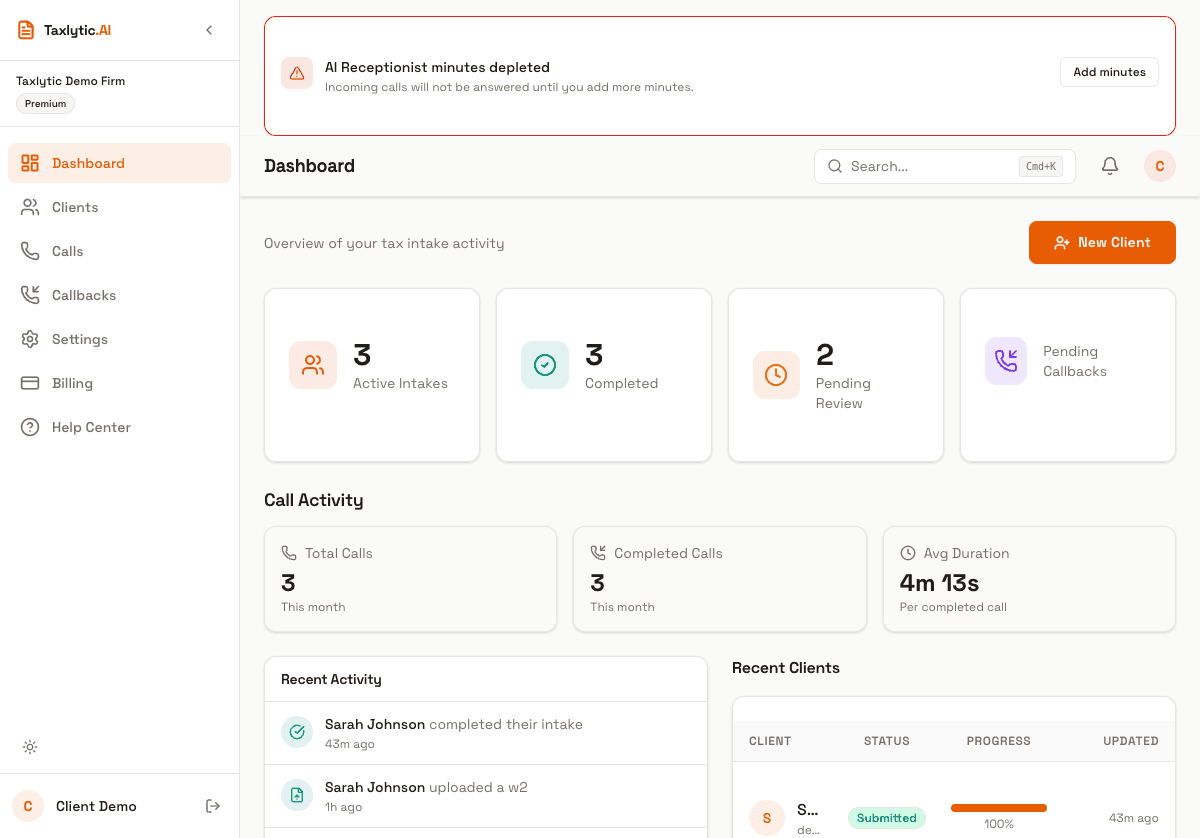
Stats cards
At the top of the dashboard, you will see key metrics about your practice:
- Total Clients - The number of clients in your account across all statuses.
- Active Sessions - Clients currently in the middle of their AI intake chat.
- Completed Intakes - Clients who have submitted their intake for your review.
- Pending Callbacks - Callback requests from the Voice Receptionist waiting for your attention.
Call activity
Below the stats cards, you will find your call activity summary for the current month (if you have Voice Receptionist enabled):
- Total Calls - All calls received this month.
- Completed Calls - Calls that were answered and completed.
- Avg Duration - The average length of completed calls.
Recent clients and activity feed
The bottom section of the dashboard shows two panels side by side:
- Activity Feed - A chronological list of recent events: new clients, completed intakes, incoming calls, and more.
- Recent Clients - Your 10 most recent clients with their current status. Click any client to view their full detail page.
Tip: If you have more than 10 clients, click "View all" to navigate to the full Clients page with search and filtering.
Onboarding checklist
If you are new to Taxlytic and have not added any clients yet, the dashboard shows an onboarding checklist that guides you through the initial setup steps. This checklist disappears once you have your first client.