Navigating the Dashboard
The Taxlytic dashboard is designed to work well on both desktop and mobile. Here is how to find your way around.
Desktop sidebar
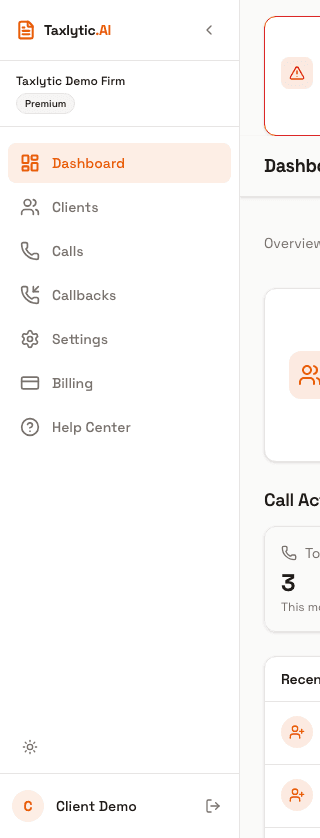
On desktop screens, a sidebar on the left side provides links to all sections of your dashboard:
- Overview - Your main dashboard with stats, clients, and activity.
- Clients - Full client list with search and filters.
- Calls - Voice call logs and transcripts.
- Callbacks - Pending callback requests from callers.
- Billing - Your subscription plan and usage details.
- Settings - Profile, branding, and Voice Receptionist configuration.
Mobile navigation
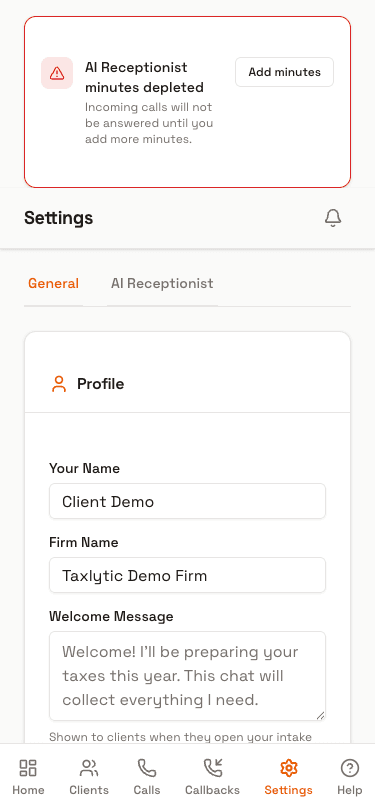
On mobile devices, the sidebar is replaced with a bottom navigation bar. The most commonly used sections are accessible from the bottom tabs. Additional pages are available through the "More" menu.
Top bar
Every page in the dashboard has a top bar showing the current page title, your name, and a notification bell icon. The notification badge shows the number of pending callback requests.
Tip: If you see a number on the notification bell, click it to go directly to the Callbacks page where you can view and manage pending callback requests.