Managing Clients
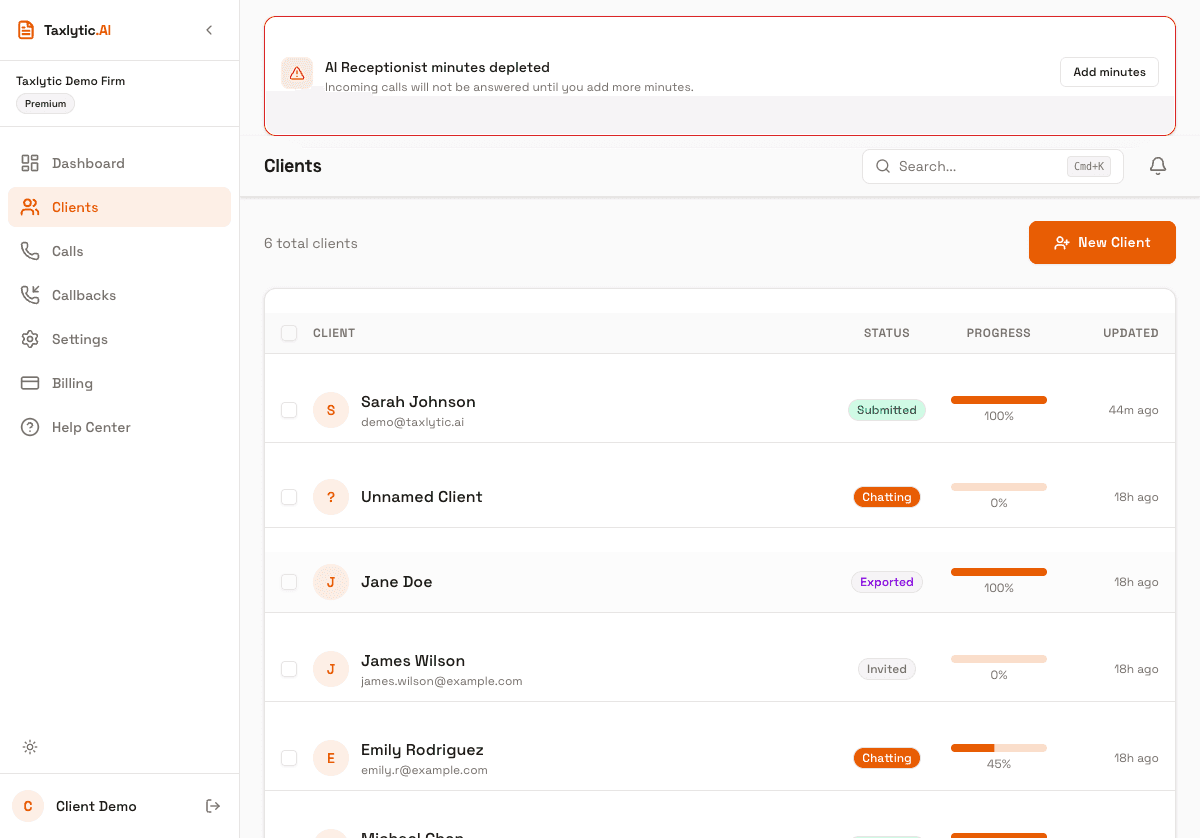
The Clients page shows everyone who has interacted with your AI intake system. You can search, filter by status, and click into any client for their full details.
Client statuses
Each client has a status badge that shows where they are in the intake process:
The client has been sent an invite link but has not started the chat yet.
The client has started the AI chat and is actively providing their tax information.
The client has completed and submitted all their tax information. Their data is ready for your review.
You have reviewed the client's submitted data. This is a manual status you can set when you are done reviewing.
Searching and filtering
Use the search bar at the top of the Clients page to find clients by name or email address. You can also filter the list by status to quickly find, for example, all clients who have submitted their intake.