Setting Up Voice Receptionist
The AI Voice Receptionist is an add-on feature that gives you a dedicated phone number answered by an AI assistant trained for your practice. It handles incoming calls, collects client information, and manages callback requests.
Availability by plan
Premium plan
Voice Receptionist is included with 200 minutes per month. Additional minutes are billed at $0.25 per minute.
Standard and Tax Season plans
Available as an add-on for $79.99/month with 200 minutes included. Tax Season also offers a season bundle at $249 for 600 minutes.
Step 1: Enable Voice Receptionist
Go to Settings and click the AI Receptionist tab. If you are on a plan that includes the feature or have purchased the add-on, you will see the configuration panel.
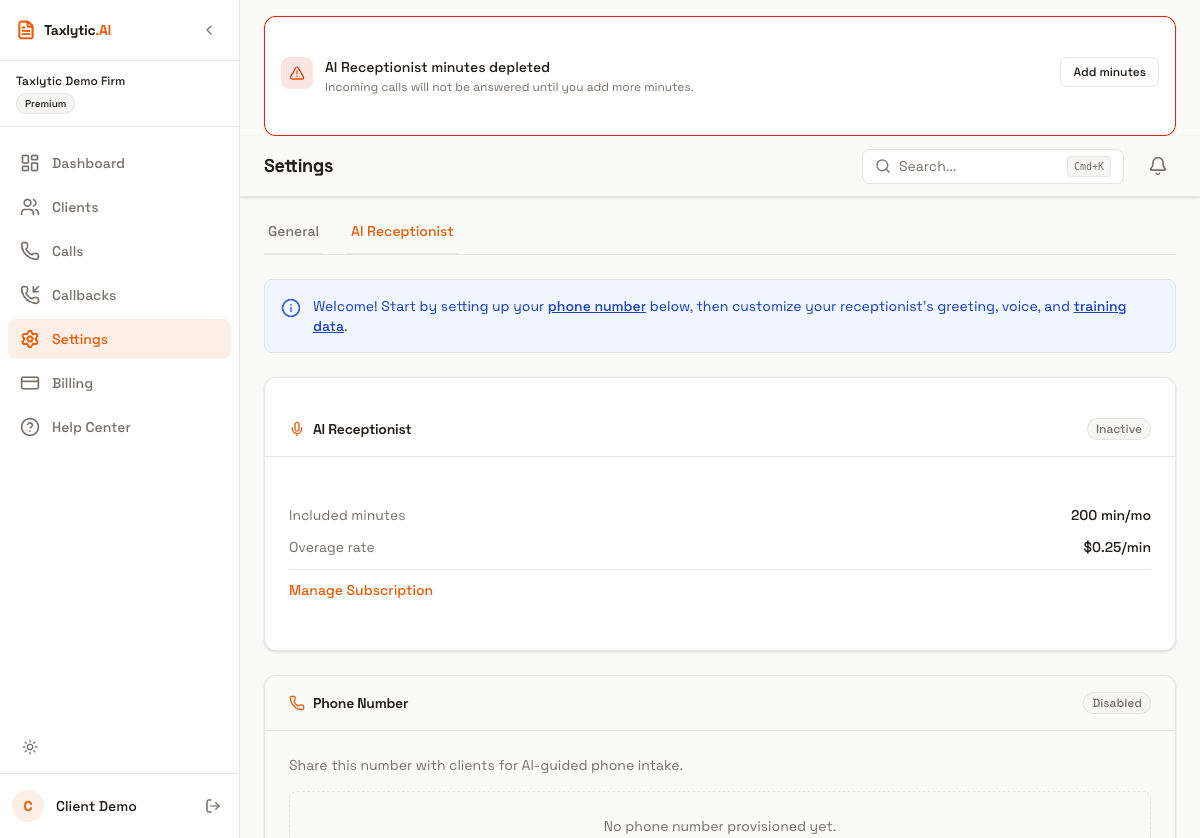
Step 2: Provision a phone number
Click "Get a Phone Number" to provision a dedicated phone number for your practice. You can choose an area code that matches your local area. Once provisioned, this number is yours and incoming calls will be answered by your AI receptionist.
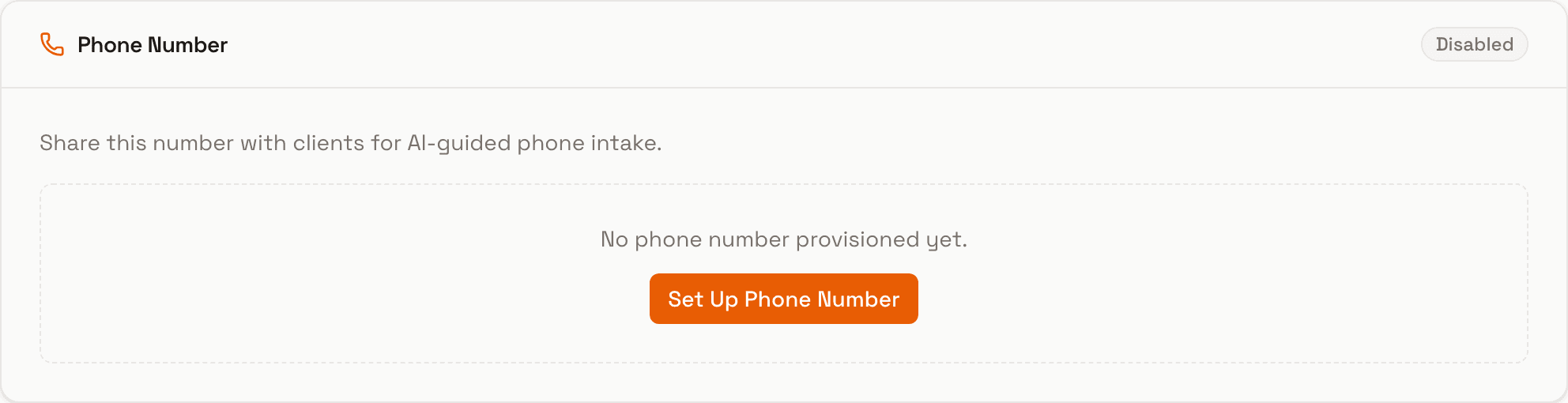
Step 3: Customize your AI receptionist
Configure how your AI receptionist behaves:
- AI Name - What the receptionist calls itself (e.g., "Sarah" or "Alex").
- Greeting - The opening message callers hear (e.g., "Thank you for calling Smith Tax Services. How can I help you today?").
- Training notes - Custom instructions for the AI about your practice, services, hours, and frequently asked questions.
- Script template - A general conversation flow guide for the AI to follow.
Call transfer
If a caller needs to speak with you directly, the AI can transfer the call to your personal phone number. Make sure your phone number is set in your profile settings so the transfer feature works correctly.