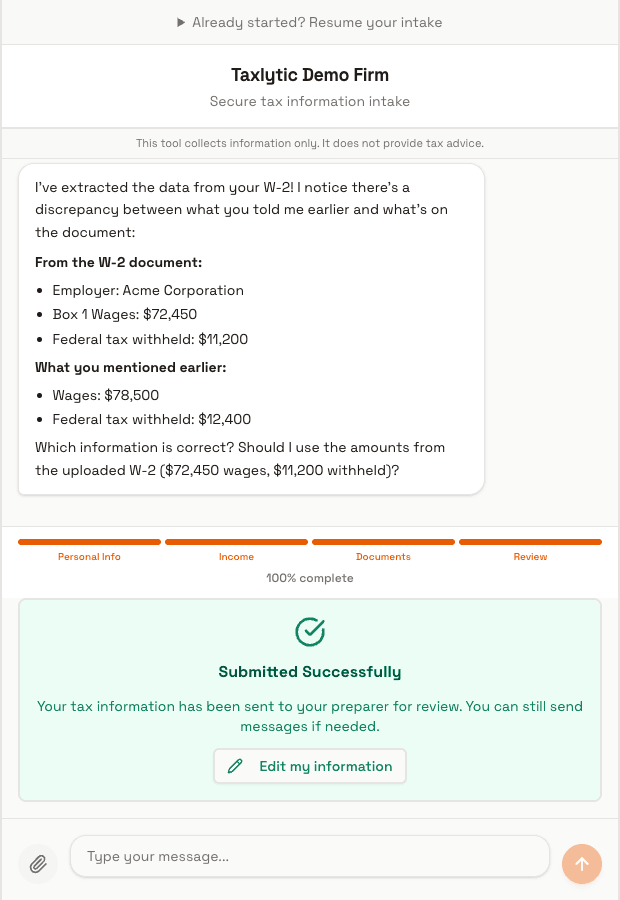
The Client Chat Experience
This guide explains what your clients see when they open your intake link. Share this page with clients who want to know what to expect before they start.
Opening the intake link
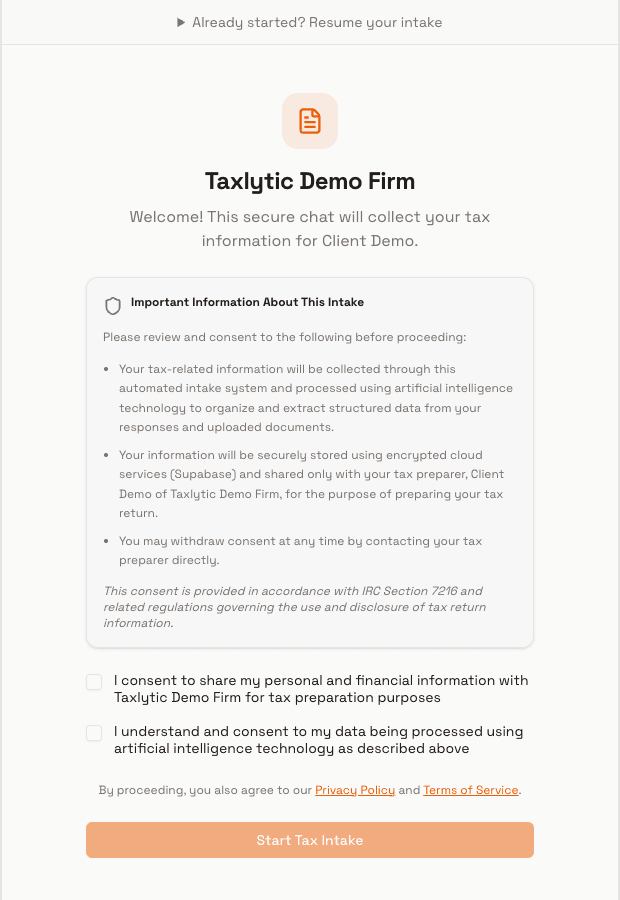
When a client clicks your intake link or visits your branded URL, they see your firm name and a brief consent agreement. The consent explains that an AI assistant will collect their tax information and that their data is securely stored.
Chatting with the AI
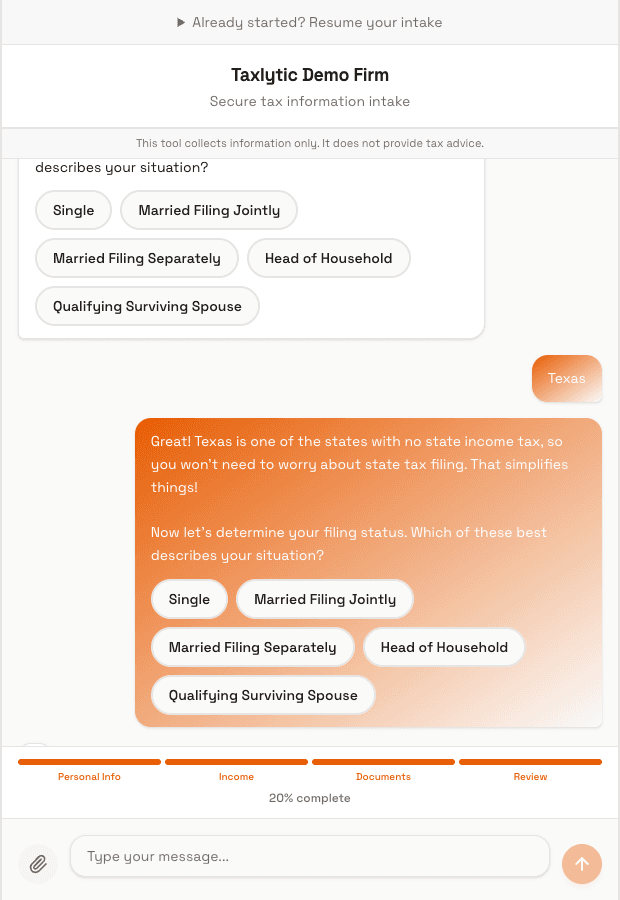
After accepting consent, the client enters a chat interface. The AI assistant introduces itself and begins asking questions one at a time. The conversation feels natural; the AI adapts its questions based on the client's responses.
Clients can type their answers or, for certain questions, click on option buttons that the AI presents (like filing status or income types).
Uploading documents
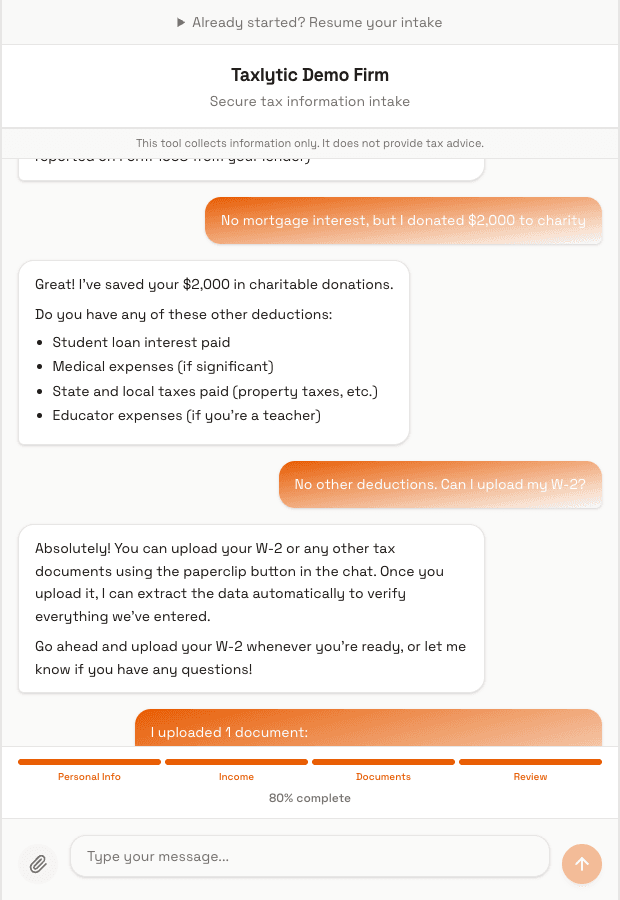
When it is time to share tax documents, the AI will prompt the client to upload photos. On mobile, clients can use their camera directly. On desktop, they can select files from their computer. The AI will confirm what it extracted from each document.
Pausing and resuming
Clients do not have to complete everything in one sitting. They can close the browser at any time and come back later. To resume, they simply visit the same intake link and enter their email address. The conversation picks up right where they left off.
Submitting the intake
Once the AI has collected all the necessary information, it presents a summary of everything gathered. The client reviews the summary and clicks "Submit" to finalize their intake. After submitting, they see a confirmation screen.